
A Friend Laughing, With The Laugh
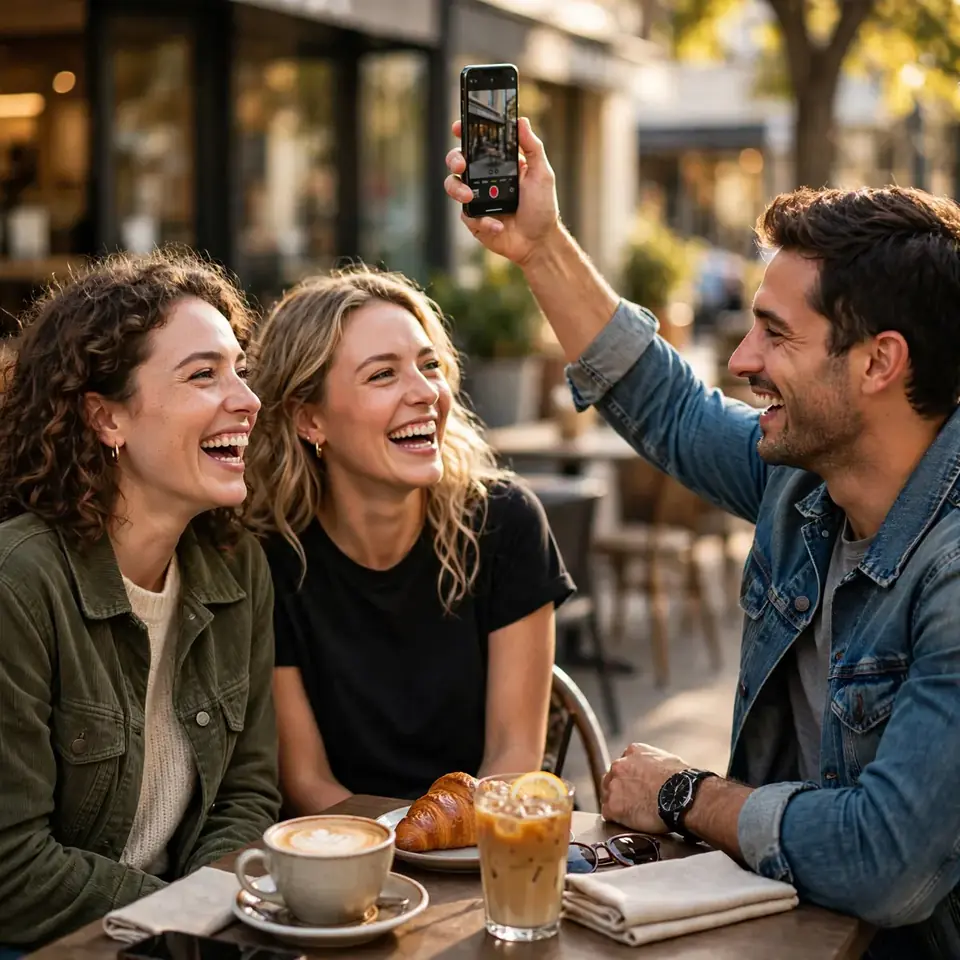
Take the photo at the moment everyone laughs, then add the laugh itself as the sound. This is the sticker people actually send. It only works with your own photo, because the joke belongs to your group.
Free sticker maker, no upload
Turn a real moment into a sticker that makes a sound. Take your own photo, a friend laughing, your dog mid-bark, a birthday cheer, add the sound from that moment, and send it as a looping video sticker. Everything runs in your browser, on your device.
Add a picture, add a sound, trim, preview and download. Everything happens in your browser.
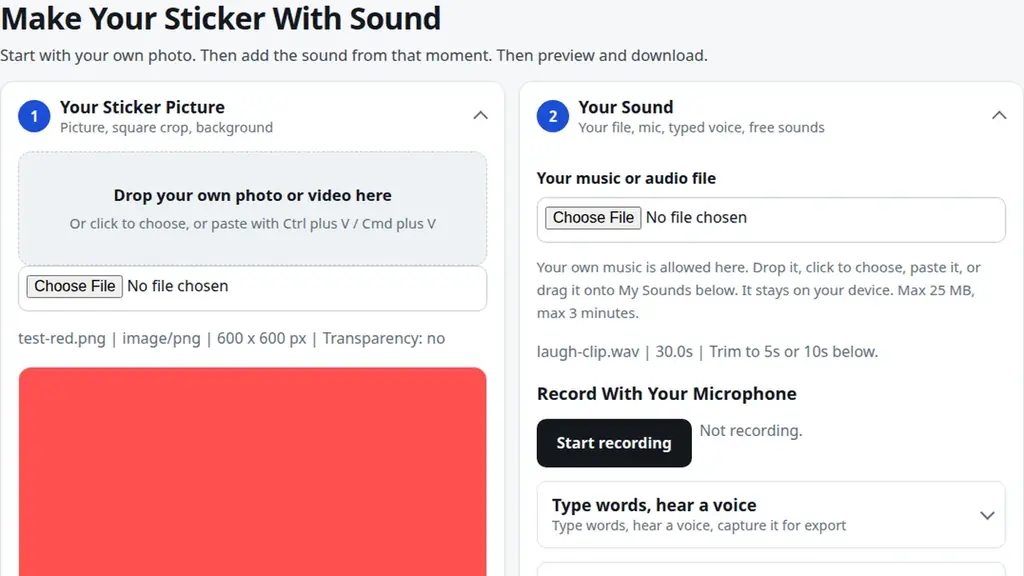
Drop your own photo or video here
or tap to choose a file. JPG, PNG, WebP or GIF.
Drag the preview to move the square crop. The sticker is always 512 by 512.
MP3, WAV, M4A, OGG and most video files work. The sound stays on your device.
A plain voice preview cannot be saved into a video by any browser. Capture it first with one of the two capture buttons, then export. The captured voice becomes real audio in your download.
Every sound is made on your device. Pick one, change the pitch and speed, and use it.
864 variations
Drop a sound file here
MP3, WAV, M4A, OGG.
Pick the loudest 5 or 10 seconds on the waveform. Tap the waveform to move the window.
Rollout: Android Beta rollout only, per account. No Sound icon yet means your account is not enabled yet.
Stickers in pack 0
A sticker with sound is a square picture plus a short sound, saved as one looping video file. The picture stays still and the sound plays when someone taps the sticker. You make one here in your browser: add a picture, add a sound, trim it to 5 or 10 seconds, and download the MP4.
The full picture, right here
This page tells you everything. You do not need to open anything else. The tool, the steps, the sounds, the sticker gallery and the fixes are all below, in plain words.
A sticker with sound is a square picture plus a short sound, saved as one looping video file. The picture stays still. The sound plays when someone taps the sticker. That is the whole idea, and it is why it works so well in chats: your friend laughing at a joke only your group understands, your dog barking at the exact moment you filmed it, a birthday cheer said out loud by the people who were there.
It is not a normal photo. A normal photo is silent. It is not a normal video either, because it is short, square and made to loop, like a sticker. The maker builds exactly that: your picture, cropped to a square at 512 by 512 pixels, plus 5 or 10 seconds of sound, looping for as long as it is watched.
Everything happens in your browser. Your picture and your audio stay on your device. Nothing is uploaded to a server, nothing needs an account, and there is no watermark on your download.
Your own photo, a friend, a pet, a real moment.
Go to step 1 in the maker and drop a picture onto the big dotted box, or tap it and choose a file. JPG, PNG, WebP and GIF files all work. A clear face or a clear object works best, because the sticker is shown small in a chat.
After you add a picture, the preview shows a square crop of it. Drag the preview to move the crop left, right, up or down until the important part sits in the middle. The final sticker is always a square, 512 by 512 pixels, which is the size chat apps expect.
Under the preview you can pick the background. Transparent keeps the picture shape with nothing behind it. White and Black fill the square. Colour lets you pick any colour as the fill behind your picture.
If it does not work: if the box does nothing, tap the file button just under it and choose the picture from your files. If the picture looks wrong, drag the preview to move the crop, or try a different background. Very large photos may take a few seconds to load, so wait for the preview to appear.
Your file, your voice, or a free sound.
Step 2 gives you four ways to add sound, and you can use any of them, in any order. The last sound you pick is the one that gets used.
Your own audio file. Use the file button under Your own audio file and pick an MP3, WAV, M4A or OGG from your device. Music, a voice note, a clip from a video, anything that plays as audio works.
Your microphone. Press Start recording, say or play the sound, then press it again to stop. The recording becomes your sticker sound straight away.
Typed voice. Type words into the box under Type it and hear it as a voice, set the pitch and speed, and press Speak it to hear it. To put that voice into your download, press Capture voice for export (tab audio) in Chrome or Edge, or Capture voice for export (microphone) if you want to record it through your mic. The capture turns the spoken voice into real audio that the download can carry. A plain voice preview alone cannot be saved into a video by any browser, so always capture before you export a typed voice.
Free sounds. Scroll to Free sounds in the maker and tap any sound to hear it, then tap Use to put it on your sticker. Every free sound is made on your device by the sound generator, so there is nothing to download and nothing that belongs to anyone else.
If it does not work: if no sound plays, check your device volume and make sure the browser has sound permission. If the microphone will not start, allow microphone access when the browser asks, and try again. If a typed voice speaks but the download is silent, you skipped the capture step, so capture it first and then export again.
Keep only the loudest part.
Step 3 shows your sound as a waveform, a picture of the sound where taller parts are louder. First pick the length: the 5 seconds button or the 10 seconds button. Then move the start point slider, or tap the waveform itself, to place the window over the best part of the sound.
Most songs and clips start quiet. The laugh, the drop, the punchline or the loudest cheer usually sits a few seconds in. Put the window there. Press Play this part to hear exactly what the sticker will play, and move the window until it sounds right.
If it does not work: if the waveform looks empty or flat, the sound file may be silent or too quiet, so try a louder file or a different free sound. If the slider will not move, make sure a sound is loaded first, the waveform only appears after step 2 has a sound.
Watch it the way a chat will show it.
Press Preview loop and watch your picture and sound play together, over and over, exactly as the sticker will loop. This is the moment to judge it honestly: does the sound start at the right place, does it end cleanly, and does the picture still look good at small size.
If anything feels off, go back to step 1, 2 or 3 and change it, then preview again. Previewing costs nothing and you can do it as many times as you like. Never skip it, because a sticker that loops badly will annoy people in a chat instead of making them laugh.
If it does not work: if the preview plays the picture but stays silent, the sound may not be loaded, or a typed voice was not captured. Go back to step 2, load or capture the sound again, and preview once more.
MP4, WebM or WebP, your choice.
When the preview feels right, download it. Press Download MP4 for the version that works in the most places, including chat apps. Press Download WebM for a smaller web-friendly video file. Press Download WebP image if you want a still image version, but note that the WebP image has no sound, it is only the picture.
The file downloads straight to your device, to your usual downloads folder or gallery. The file name tells you which sticker it is. You can make as many as you like, there is no limit and no account.
If it does not work: if the download never starts, check your browser download permission and look in your downloads folder, it may already be there. If the video exports with no sound, the sound was not loaded or a typed voice was not captured, so go back to step 2 and fix that first. If an export fails in an old browser, try Chrome or Edge, which handle video export best.
Into a chat, or anywhere else.
After you download the MP4, press Send to WhatsApp in the maker. It downloads the MP4 if needed and opens the share sheet on your phone, so you can pick WhatsApp and a chat. In WhatsApp, use the sticker icon, Create sticker, pick the video, turn Sound on and keep the original audio, and your sticker is in the chat with its sound.
Press Share this sticker to share the finished file with any other app on your phone, or send the downloaded file by hand from your gallery or files app to any chat, social app or email. You can also add the sticker to your pack on this device with Add this sticker to the pack, and build a whole set before you share them one by one.
If it does not work: if sharing straight into a chat sends a silent video, that is because the file was shared as a video, not imported as a sticker. Use the Create sticker flow inside WhatsApp instead. If the share sheet does not open, share the downloaded MP4 by hand from your gallery.
Four starting points. Mix any picture with any sound and you have a new sticker in under a minute.
Take the photo at the moment everyone laughs, then add the laugh itself as the sound. This is the sticker people actually send. It only works with your own photo, because the joke belongs to your group.

Your dog, your cat, your bird, photographed by you and paired with the sound it actually made. Record your own pet for the real thing. A generic animal picture never lands the same way.

The cake, the candles, everyone singing at once. Keep the photo, keep the cheer, trim to the loudest second. Personal, in under a minute. The same idea works for Eid, New Year and every family occasion.

Your friend's face the second the surprise lands, paired with the gasp, the cheer or the laugh from that same second. The group chat reaction. Real faces beat cartoon faces every time.
Two built-in libraries, both made on your device, both free, both with no download and no copyright worry.
The free sounds are not 14 files sitting on a server. They are made by a sound generator that runs in your browser. It starts with 48 base sound recipes and changes each one three ways: pitch, speed and echo. Low, normal or high pitch, slow, normal or fast speed, echo on or off. That gives 864 playable variations from those 48 recipes, and every one of them is made fresh on your device when you press play.
Because the sounds are generated, not copied from anywhere, you can use them freely in your stickers. No downloads, no licences, no one else's audio. If a sound is almost right, change the pitch or speed and try it again. If you want a surprise, press Surprise me and the maker picks a random sound for you.
Every sound sits in a category, and the category chips above the sound list filter the list in one tap.
Use the search box to find a sound by name. Try "laugh", "drum", "bell" or "crowd". Tap the star on any sound card to mark it as a favourite, then press Favourites only to see just your saved sounds. Favourites stay on your device, in your browser.
The gallery under the maker starts with photo moments: real-life scenes you can load in one tap to see how the maker works. Replace any of them with your own photo in step 1. The generated faces and classic stickers sit below, as a backup for when you have no photo of your own.
The gallery pictures are also generated on your device. The sticker generator mixes 20 characters, 8 expressions, 9 accessories and 7 backgrounds, which gives 10,080 combinations. Change the character, expression, accessory or background in the generator controls and the preview updates at once. Press Random for a surprise face, or Load 12 more to see a fresh set in the grid.
Use the gallery search box to find a sticker by name, for example "cat", "robot" or "star". A generated sticker is a clean starting point, and once you add your sound it becomes yours. Combine it with a free sound, trim it, preview it and download it, all in the same maker, without leaving this page.
Tap a sticker to load it into the maker, then add a sound. Or build your own with the generator.
Start from a real moment, then replace it with your own photo in step 1. These are examples, not stock art.
10,080 combinations. Change any control and the preview updates at once.
A square picture combined with a short sound, saved as a looping video file. The picture stays still and the sound plays when the sticker is tapped.
Choose a 5 second or 10 second window on the waveform. The maker trims the sound to that window and loops it with the picture.
Yes. Upload an audio file, record with your microphone, or type words and speak them. Saved sounds stay on your own device in your browser.
MP4 for the widest use, WebM for the web, and WebP for a silent image version. The WebP version has no sound.
No. The maker runs in your browser. Your picture and audio stay on your device and are not uploaded to a server.
A plain voice preview cannot be saved into a video by any browser. Capture the voice first with the tab audio capture or microphone capture button, then export. The captured voice becomes real audio in your download.
Yes. The free sounds are generated on your device by code in this page, not copied from other sites, so you can use them in your stickers. Your own music stays yours too, and nothing you make here carries a watermark.
Yes. Open this page in your phone browser, add a picture from your gallery, pick a sound or record one, trim it, and download the MP4. The maker works in Android and iPhone browsers, and nothing needs to be installed.