Make A Sticker With Sound From A Photo
Any photo can become a sticker with sound: a face, a pet, a place, a drawing. The maker crops the photo to a square, adds your sound, and exports a looping video. Start with the sticker maker, drop your photo in step 1, and the rest takes under a minute.

Any photo can become a sticker with sound: a face, a pet, a place, a drawing. The maker crops the photo to a square, adds your sound, and exports a looping video. The photo stays still, the sound plays when the sticker is tapped, and the whole job takes under a minute.
Build The Sticker From Your Photo, Step By Step
Start with the photo, then the sound, then the trim. The order matters, because the crop decides what people see, and the sound decides what they hear.
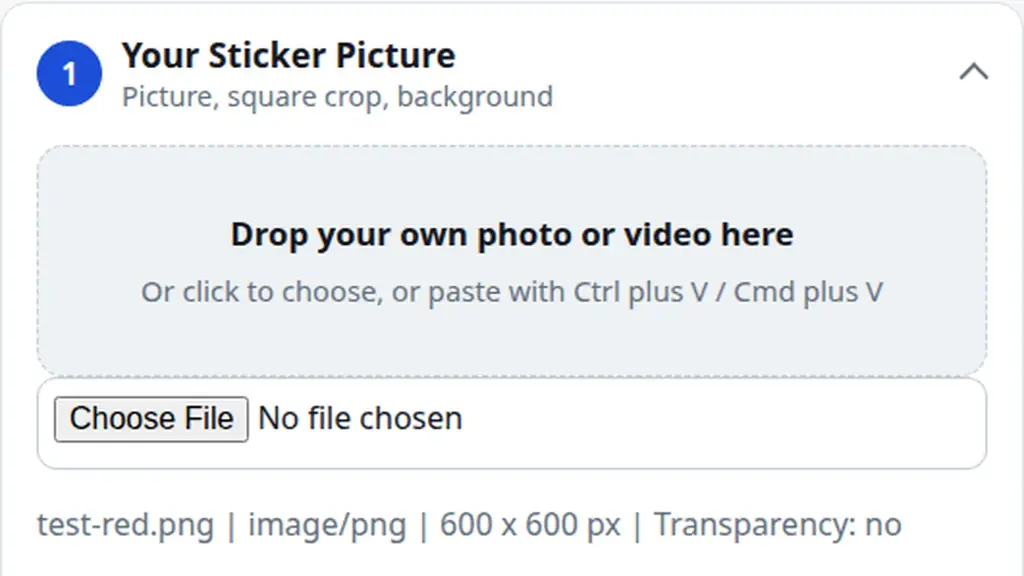
- Drop your photo in step 1. Drop a JPG, PNG, WebP, or GIF photo onto Drop your picture here, or tap the area and choose the photo from your files. A clear face or a clear object works best, because the sticker is shown small in a chat.
- Set the square crop. Drag the preview to move the square crop until the important part sits in the middle. The final sticker is always a square, 512 by 512 pixels, which is the size chat apps expect. A close up of a face beats a full body photo every time.
- Pick the background. Choose Transparent to keep the picture shape with nothing behind it, White or Black to fill the square, or Colour to pick any colour as the fill behind your picture. Check the preview, because a busy background can fight with the subject.
- Add a sound in step 2. Choose an audio file, press Start recording and record with the microphone, type words and capture the voice, or open Free Sounds, tap a sound, and tap Use. To put a song under the photo, see Add music from a file and trim it to the best few seconds.
- Trim to the loudest part. In step 3, press 5 seconds or 10 seconds, then tap the waveform or move the start point slider to place the window over the best part of the sound. Press Play this part to hear exactly what will export.
- Preview and download. Press Preview loop, watch the picture and sound together twice, then press Download MP4. Use Download WebM only as a web backup, and Download WebP image only when you want a silent still picture.
Once you have three or four photo stickers that belong together, read how to make a sticker pack from your own pictures and save them as a set.
Real Moments That Start As Photos
A photo sticker works when the photo already tells the story, and the sound only finishes it. Start from your own camera roll, not from a search, and the sticker will feel personal in a way no stock picture can.
Your Own Photo, One Clear Face
Pick a photo of yourself with one clear expression: the laugh, the surprise, the proud grin. Crop tight on the face, add the sound from that moment, and the sticker becomes your signature reaction in every chat.
A Friend Laughing, Photographed By You
A photo you took of a friend laughing, paired with their real laugh, is the sticker the whole group will use. Keep the crop on the face, keep the sound to one loud laugh, and ask the friend first.
A Pet Photo With Its Own Sound
Photograph your own pet filling the square, then record the sound it actually made: a bark, a meow, a happy pant. The photo alone is cute, but the photo plus the real sound is the sticker people send again.
A Birthday Photo Said Out Loud
A birthday photo with the candles, the cake, and the faces around it, paired with the cheer everyone shouted, keeps the whole occasion in one sticker. Trim the window onto the loudest second of the cheer, preview twice, and send it to the people who were there.
Cartoon smileys are only a minor backup. Your own photo comes first, and a friend's funny moment comes second.
Tips For A Photo That Reads Small
- Use one subject and a simple background. Busy photos turn into a blur at sticker size.
- Crop tight. Faces should fill most of the square, not sit small in a wide scene.
- Use bright, sharp photos. Dark or blurry photos look worse once they are cropped and shrunk.
- Match the sound to the face. A laugh with a laughing face, a cheer with a celebrating face, a gasp with a surprised face.
- Preview at small size in your mind. If you cannot read the photo at a glance, crop tighter.
Troubleshooting Photo Stickers
- The subject is cut off. Drag the preview to move the square crop, or choose a different photo.
- The photo looks blurry. Start from a sharper, brighter original.
- The background looks wrong. Try Transparent for a clean shape, or White for a clean frame. A strong Colour fill can fight with a busy photo.
- The export has no sound. Check that a sound loaded in step 2, capture a typed voice before export, and press Play this part to confirm the sound is there.
- The sound starts late. Move the trim window right onto the loud part of the waveform, and preview the loop again before you download.
Frequently Asked Questions
What Photos Work Best For A Sticker?
Close up photos with one clear subject and a simple background work best. Faces, pets, and single objects read instantly at sticker size, while wide group photos turn into a blur.
What Photo Files Can I Use?
JPG, PNG, WebP, and GIF files all work. A sharp, bright photo beats a dark or blurry one, because the sticker is shown small in a chat.
Can I Keep The Background Transparent?
Yes, for a still picture. Choose Transparent under the preview to keep the picture shape with nothing behind it. Video stickers use a solid background instead.
How Do I Make A Set From My Photos?
Build each sticker the same way, with the same crop style and the same kind of sound, then save each one to the pack. A small themed set beats a pile of random stickers.