Add Music To A Sticker With Sound
Adding music to a sticker means putting your own audio file under a square picture, then trimming it to the few seconds that matter. The maker accepts MP3, WAV, M4A and OGG files up to 25 MB and 3 minutes, and everything stays on your device. Open the sticker with sound maker, add your picture, and add your music file in step 2.

A sticker is not a song player. For the window itself, read how to trim a sticker to 5 seconds so the chorus lands in the first second. It loops a short window, so the whole song never travels with the picture. Your job is to find the loudest, most recognisable few seconds: the chorus, the drop, the riff, the line everyone knows. That window is the sticker.
Step By Step To Add Music
Music stickers are about finding a few seconds, not playing a song. Follow the steps in order, and judge the sticker by the first second of the trim window.
- Add your picture in step 1. Drop your picture onto the box that says Drop your picture here, set the square crop, and pick a background.
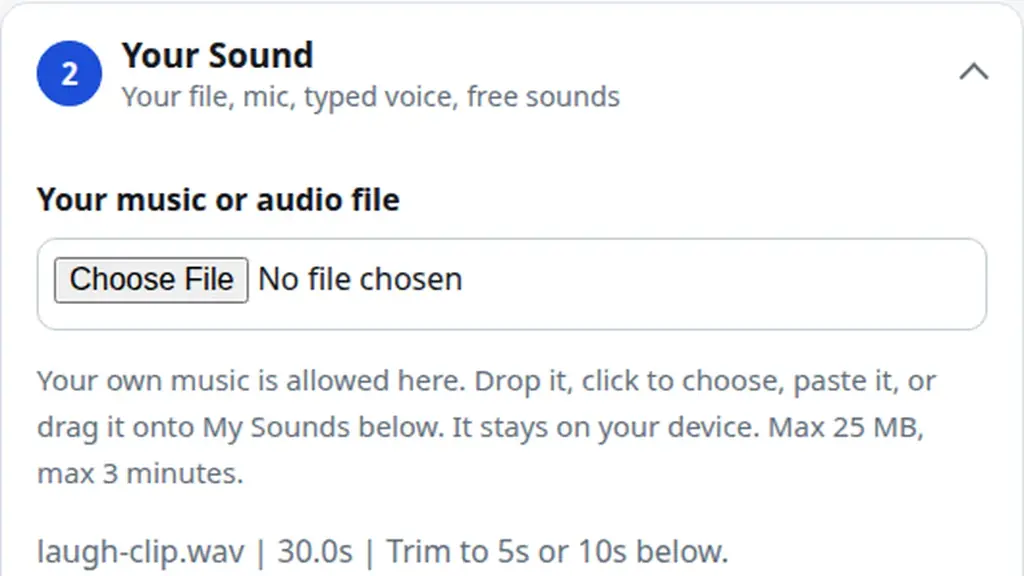
- In step 2, use the audio file button and choose your music file. The maker accepts MP3, WAV, M4A and OGG files up to 25 MB and 3 minutes.
- If the song lives inside a video file, choose the video file with the same audio file button. The maker reads its audio track, so a clip from your camera roll works the same way.
- In step 3, pick 5 seconds or 10 seconds, move the trim window onto the chorus or the drop, and press Play this part.
- Press Preview loop, watch it twice, and check that the music starts loud and clear. If the intro is quiet, move the window right to the loudest part.
- Press Download MP4, play the file in your gallery, and press Save current sound to My Sounds if you want to reuse the same music on another sticker.
Choose The Right 5 Seconds
Play your song and listen for the moment people would recognise with the sound off, or rather, with only the sound on. The first seconds of most songs are quiet, so the intro rarely works. The chorus or the drop usually works, because it is loud, full and familiar.
If the song has words, pick a line that fits the face. A birthday face wants the birthday line. A celebration face wants the loudest cheer in the track. A joke face wants the beat drop right after the setup. Meme sounds work the same way: one moment, not the whole track.
Add Your Music File, Step By Step
- Add your picture in step 1 and set the square crop.
- In step 2, use the audio file button and choose your music file from your device.
- In step 3, pick 5 or 10 seconds, move the trim window onto the best part, and press Play this part.
- Press Preview loop, watch it twice, then download the MP4.
If the file is a video, the maker can read its audio too, so a clip saved from your camera roll works the same way. If the file is too quiet, pick a louder part of the track, or use a different file, because the export keeps the volume it is given.
Music You Own, And Music You Do Not
Your own recordings and music you made are always fine to use. Music by other artists belongs to its owners, so keep those stickers for private chats with friends rather than public posts, and never present someone else's song as your own work.
When in doubt, use a generated free sound with the same energy, or record yourself humming, clapping or saying the line. The sticker is about the moment, not the recording quality. A phone recording of you laughing at the right second beats a perfect song at the wrong second.
Real Moments With Music
Music works when it belongs to the moment in the photo. A song from the party or trip turns the sticker into a memory with a soundtrack.
- Your own photo from a birthday meal, with the birthday song as the sound. Trim to the line everyone sang together.
- A friend laughing on a trip, with the song that was playing in the car at that stop. The music takes the group straight back to the journey.
- A pet photo from a playful afternoon, with a short, bouncy tune that matches the energy in the picture. Keep it to the liveliest few seconds.
Tips For Music Stickers
A sticker loops, so the music you choose will repeat. Pick a window that loops cleanly, and avoid a window that ends in the middle of a word.
- Pick the chorus or the drop, not the intro. Most songs start quiet, and a quiet start makes the sticker feel broken.
- Match the line to the face. A birthday face wants the birthday line, a celebration face wants the loudest cheer in the track, and a joke face wants the beat drop.
- Preview the loop point. If the end of the window jumps back to the start with a thud, move the window a little and preview again.
Troubleshooting Quick Checks
Music stickers usually fail on volume or the trim window. Both are fixed by moving the window.
- Music is too quiet: pick a louder part of the track, or use a different file. The export keeps the volume it is given.
- Music starts late: move the trim window right, press Play this part, and export only when the chorus lands in the first second.
- File will not load: check the size and length limits, then try the same song as an MP3. A video file works too, through the audio file button.
Frequently Asked Questions
What Is The Biggest Music File I Can Use?
25 MB and 3 minutes. The maker trims longer files to the 5 or 10 second window you choose, so a full song is fine as a source, only the window is exported.
Can I Use A Song Saved Inside A Video File?
Yes. Choose the video file with the audio file button and the maker reads its audio track. You can also drop a video as the picture source and add its sound separately.
Does The Music Keep Playing On A Loop?
Yes. The exported video loops the chosen window with the picture, so the music repeats for as long as the sticker is watched.
Can I Use Music I Recorded Myself?
Yes. Your own recordings and music you made are always fine to use. Keep music by other artists for private chats with friends, and never present someone else's song as your own work.