Trim A Sticker To 5 Seconds
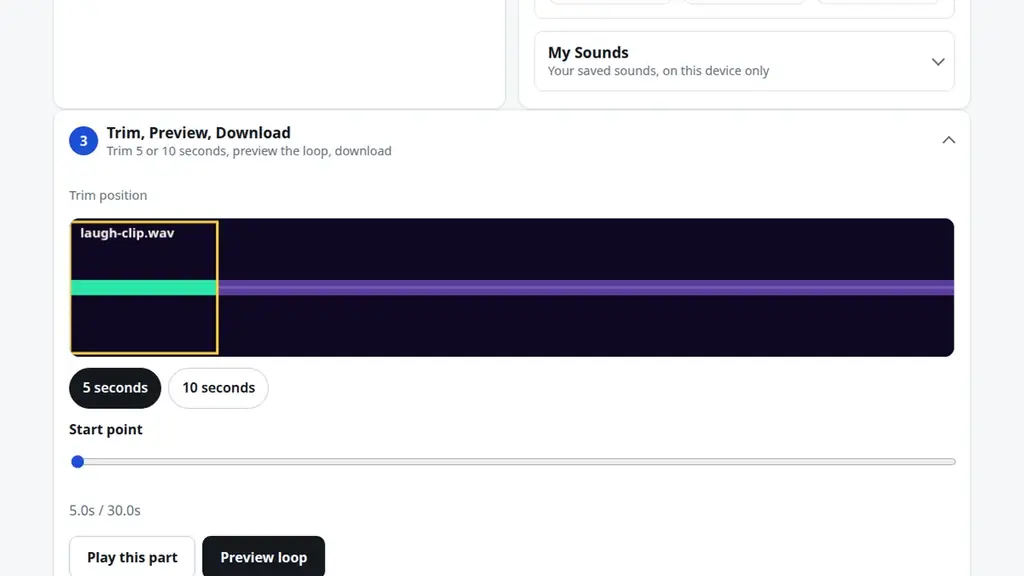
Trimming is choosing which 5 seconds of your sound travel with the picture. The maker shows your sound as a waveform, and the 5 second window on that waveform is the whole sticker. Open the sticker maker, load a sound in step 2, and the waveform appears in step 3.

Most sounds waste their first seconds. Songs start quiet, voice notes start with a breath, clips start with silence. The trim step exists so you can skip all of that and start at the moment that matters, then end before the energy drops.
Step By Step To Trim To 5 Seconds
Trimming is a listening job, not a guessing job. Load the sound, read the waveform, move the window, and listen to the exact part that will export before you download.
- Drop your picture onto the box that says Drop your picture here, set the square crop, and pick a background. The picture step comes first, because the trim step needs a sticker to trim for.
- Load a sound in step 2: an audio file, a recording made with Start recording, a captured typed voice, or a free sound. The waveform appears in step 3 only after a sound is loaded.
- In step 3, press the 5 seconds button so the window is 5 seconds long. Look for the tallest, busiest section of the waveform, because that is usually the laugh, the drop, the cheer or the punchline.
- Drag the start point slider, or tap the waveform itself, to move the window onto that section. Start the window a fraction before the loud moment, so the first sound is not cut in half.
- Press Play this part and listen to exactly what will export. Move the window again until the part sounds right from the very first second, and ends just after the moment lands.
- Press Preview loop, watch the loop twice, then press Download MP4. If the moment feels rushed, switch to the 10 seconds button, move the window again, and preview both lengths.
Read The Waveform
The waveform is a picture of your sound. Taller parts are louder, flat parts are quiet or silent. A laugh shows as a burst of tall spikes. A song shows verses as medium waves and the chorus as the tallest section. Silence shows as a flat line.
Look for the tallest, busiest section first. That is usually the laugh, the drop, the cheer or the punchline. If the whole waveform looks flat, the file may be very quiet, so try a louder file or a free sound from the maker instead.
Move The Window To The Best Moment
- Press the 5 seconds button so the window is 5 seconds long.
- Drag the start point slider, or tap the waveform itself, to move the window.
- Press Play this part and listen to exactly what will export.
- Move the window again until the part sounds right from the very first second.
Start the window a fraction before the loud moment, not on top of it, so the first sound is not cut in half. End it just after the moment lands. A window that starts late makes the sticker feel broken, even when the sound itself is good.
5 Seconds Or 10 Seconds
Five seconds wins for jokes, reactions and single sounds: a laugh, a pop, a cheer, one spoken line. Ten seconds wins for a tune, a longer line, or a sound that builds, like a countdown or a short chorus.
When you are unsure, try 5 seconds first. If the moment feels rushed or cut off, switch to 10 seconds and move the window again. The choice costs nothing, and previewing both takes less than a minute. For music, see how to add music to a sticker and pick the window that holds the chorus.
Real Moments That Need A Good Trim
Almost every real sound wastes its first seconds. Songs start quiet, voice notes start with a breath, and clips start with silence. Trimming skips all of that and starts at the moment that matters.
- A friend laughing, recorded with a pause before the laugh. Trim past the pause, start on the laugh, and the sticker lands at once.
- A birthday cheer that builds slowly. Move the window to the loudest second of the cheer, so the sticker starts with the eruption, not the warm up.
- A pet bark recorded in a long clip. Find the bark spike on the waveform, place the window over it, and the sticker becomes one clean bark.
Tips For A Clean Trim
A clean trim starts just before the moment and ends just after it. Too early feels slow, too late feels broken, and the waveform shows you where the moment sits.
- Read the waveform before you move anything. Flat parts are quiet or silent, tall spikes are loud, and the tallest section is usually the moment.
- Use Play this part after every move. Your ears confirm what the waveform suggests, and one second of movement can change the whole sticker.
- When you are unsure, try 5 seconds first. If the moment feels cut off, switch to 10 seconds and move the window again. The choice costs nothing.
Troubleshooting Quick Checks
Trim problems look like sound problems, but the sound itself is usually fine. Check the window position first, then the sound source.
- Slider will not move: load a sound in step 2 first. The waveform only appears after a sound is loaded, so open step 3 after step 2 has a sound.
- Sticker plays the sound late: the window starts before the loud part. Move it right, press Play this part, and export only when the first second sounds right.
- Whole waveform looks flat: the file may be very quiet. Try a louder file, a louder recording, or a free sound from the maker instead.
Frequently Asked Questions
Can I Trim To Exactly 3 Seconds?
The window is 5 or 10 seconds. Put a 3 second sound at the start of a 5 second window and it plays, then the loop repeats, which works fine for short sounds.
What Happens To The Rest Of A Long File?
Only the chosen window is exported. The rest of the file is ignored, and your original file is never changed, so you can trim the same file again with a different window.
The Slider Will Not Move. What Is Wrong?
The waveform only appears after a sound is loaded in step 2. Load a sound first, then open step 3. If the slider still will not move, reload the page and load the sound again.
Should I Trim A Laugh Differently From A Song?
Yes. A laugh wants the window on the burst of tall spikes, with a fraction of room before it. A song wants the window on the chorus, where the waves are tallest and fullest.