Fix A Silent Sticker With Sound
A silent sticker almost always has one of three causes: no sound was loaded, a typed voice was never captured, or the file was shared as a video instead of imported as a sticker. Work through the checks below in order, and most silent stickers start talking again in a minute. Keep the maker open while you check, so you can fix and re-export in the same session.

A silent export is usually a single missed step, not a broken picture and not a broken file. Work through the three causes in order: no sound loaded, a typed voice never captured, or a file shared as a video instead of imported as a sticker.
Check The Sound, The Capture, And The Share Flow
Keep the maker open while you check, so you can fix and re-export in the same session.
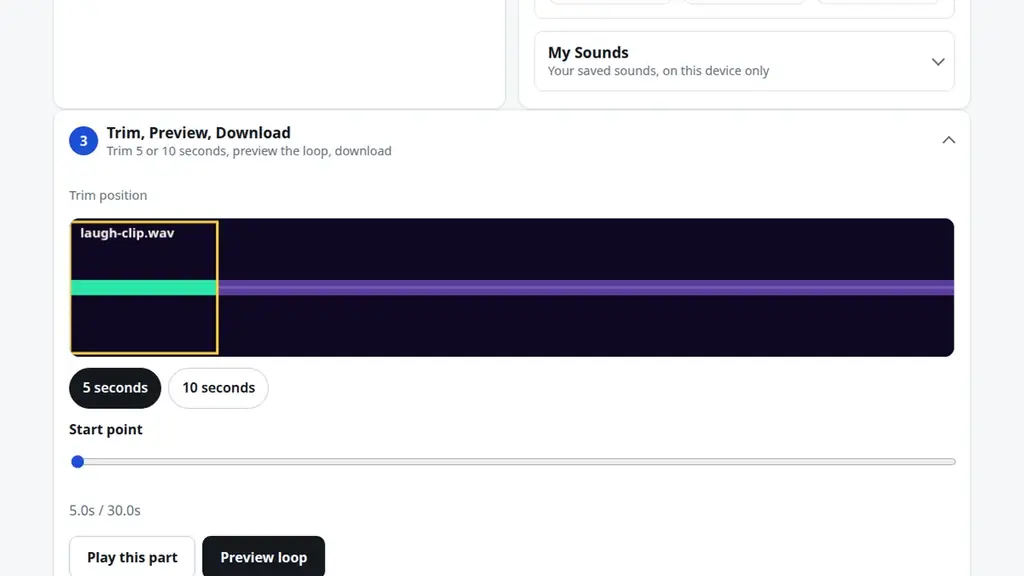
- Confirm a sound actually loaded. In step 2, the file info line should name the sound, and step 3 should show a waveform with visible ups and downs. If the waveform is flat, load the sound again, or pick a different sound. A flat waveform means silence, and no trim setting can fix silence.
- Press Play this part. In step 3, press Play this part and listen. If you hear nothing, check your device volume and browser sound permission first, because volume is the simplest cause and the easiest to miss. Then move the trim window onto a loud part of the waveform and press Play this part again.
- Capture a typed voice. If you used a typed voice, press Speak it to hear the preview, then press Capture voice for export (tab audio) in Chrome or Edge, or Capture voice for export (microphone) to record it through the microphone. A plain voice preview cannot be saved into a video by any browser, so the capture step is not optional.
- Confirm the capture status. After capture, read the status line under the typed voice controls. If it does not confirm a captured voice, capture again before you export. Exporting before capture is the most common cause of a silent typed voice sticker.
- Preview the loop. Press Preview loop and watch twice. If the preview has sound, the sticker has sound. If the preview is silent, the problem is in the maker, not in the chat, so fix it here and do not send the file yet.
- Export the MP4 again. Press Download MP4 and check the new file in your gallery before you share it. A file that plays with sound in your gallery has the sound embedded. A file that is silent in your gallery was never fixed, whatever the chat shows.
- Share through the sticker flow. In WhatsApp, use the sticker icon, Create sticker, pick the video, turn Sound on, and choose Keep original audio.
Real Moments That Expose A Silent Sticker Fast
Your Own Photo With Your Own Laugh
Use your own photo and record your own laugh with the microphone. If the export is silent, you know at once, because you know exactly what the laugh should sound like.
A Friend Laughing, Tested In The Group
A friend laughing is the classic test case: the photo is clear, the laugh is loud, and the group knows the moment. If the group hears nothing, the trim window is probably on silence, or the file went out as a video. Fix the window, re-export, and import it through the sticker flow. To start from a sound that is loud from the first second, pick a free meme sound and test with that before you rebuild your own.
A Pet Sound That Cannot Be Missed
Your own pet barking or meowing is impossible to miss when it works, and impossible to mistake when it does not. If the pet sticker is silent, check the waveform first.
A Birthday Cheer With One Loud Second
A birthday cheer has one loud second and a lot of quiet around it. If the trim window sits on the quiet, the sticker exports silent even though the file has sound. Move the window onto the cheer, press Play this part, and only export when you hear the cheer in the preview.
Cartoon smileys are only a minor backup. Your own photo comes first, and a friend's funny moment comes second.
Tips That Prevent Silent Exports
- Always press Play this part before you export. If you cannot hear it there, the download will not have it either.
- Always capture a typed voice before export. The preview is not the export, and no browser can save a plain preview into a video.
- Check the waveform. Tall peaks mean sound, a flat line means silence, whatever the file name says.
- Export the MP4 and play it in your gallery before you share it. The gallery test settles every argument about the file.
Troubleshooting Every Silent Case
- Silent everywhere, including the preview. No sound loaded, or the volume is down. Load the sound again, raise the volume, and press Play this part.
- Sound in the preview, silent in the download. A typed voice was never captured. Press Capture voice for export (tab audio) or Capture voice for export (microphone), confirm the status, and export again. For the recording path that exports directly, see the record your voice guide.
- Sound in the gallery, silent in WhatsApp. The file was shared as a video, or the sticker was not tapped.
- Sound starts late or ends early. The trim window is in the wrong place. Move it onto the loud part, press Play this part, and preview the loop twice.
- Only one sticker is silent. That sticker has its own cause, usually a quiet file or a missed capture. Rebuild that one sticker with a fresh recording. For the wider checklist, see the troubleshooting guide and work it in order.
Frequently Asked Questions
The Preview Is Silent But The Sound Loaded. Why?
Check device volume and browser sound permission first. Then check the trim window: if it sits on a silent part of the file, move it onto the loud part and press Play this part again.
The Export Is Silent But The Preview Has Sound. Why?
That is almost always a typed voice that was never captured. Capture the voice with one of the capture buttons, confirm the status line, and export again. Recorded voices and files export directly.
WhatsApp Plays My Sticker Without Sound. Why?
Tap the sticker in the chat, because sound stickers stay muted until tapped. If it is still silent, the file was likely shared as a video. Import it again through the Create sticker flow with Sound on and Keep original audio.
The Waveform Looks Flat. What Does That Mean?
A flat waveform means the loaded sound is silent or very quiet. Load a louder file, record again closer to the microphone, or pick a different free sound, then check the waveform before you export.