Sticker With Sound Troubleshooting
Sticker with sound troubleshooting means checking, in order, the file, the audio, the browser, and the WhatsApp rollout. Most problems have one of four causes: the export used preview only voice, the browser lacks a codec, the picture was cropped wrong, or the account has not been enabled for sound stickers yet. Or go straight to Sticker with sound maker.

Most problems have one of three causes: no sound was loaded, a typed voice was not captured, or the file was shared as a video instead of imported as a sticker. Work through the sections in order, checking one cause at a time, before changing anything else.
Step By Step Diagnosis In Order
Fix problems in maker order: picture, sound, trim, preview, export, then WhatsApp.
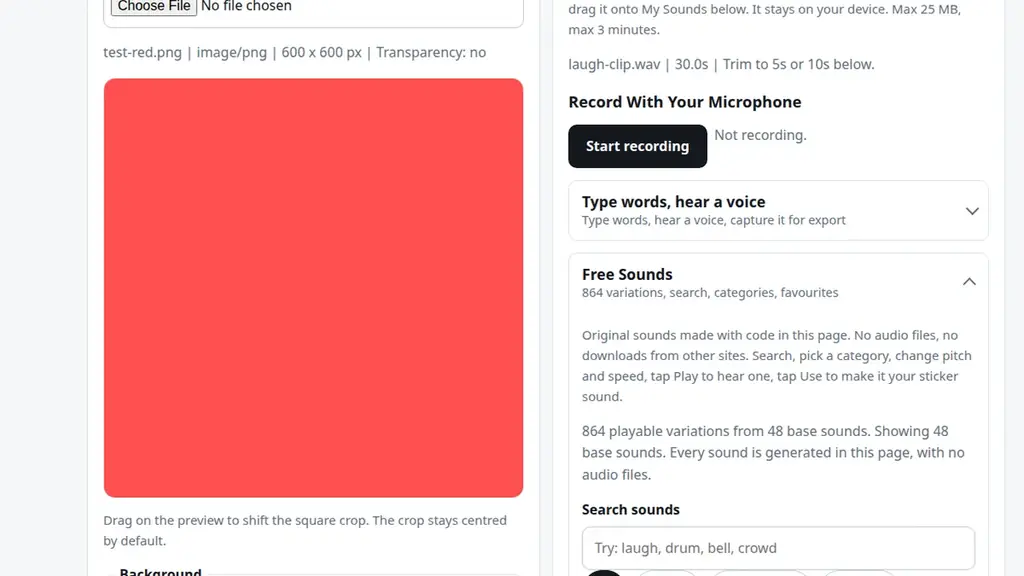
- Open the maker and check the picture first. Drop your picture onto the box that says Drop your picture here, drag the preview to set the square crop, and confirm the subject sits in the middle.
- Check step 2 and read the audio label. If it says typed voice with no capture, the export had no audio to embed. Press Capture voice for export (tab audio) or Capture voice for export (microphone) and check the captured level.
- Press Play this part in step 3 and listen to the trim window. If the window starts before the loud part, move it right on the waveform until the first second sounds right.
- Press Preview loop and watch with the sound on. If the preview is silent, the sound was not loaded. Load a file, a recording made with Start recording, or a free sound, and preview again.
- Press Download MP4, then play the file in your gallery. If the gallery playback is silent, try Download WebM, or try Chrome or Edge for MP4, and keep the tab in front during export.
- Check WhatsApp last. Open WhatsApp Beta on Android, use Create sticker with the video, and look for the Sound icon. If the icon is missing, the account has not been enabled yet, and the file still works as a short video.
Note what you changed at each step, so you can repeat the fix that worked.
The Sticker Is Silent
First, check the audio label in the maker. If it says typed voice with no capture, export had no audio to embed. Capture the voice with tab capture or microphone capture, then export again. If the label shows a file or a free sound and the preview is silent too, check the phone volume and silent mode. If the preview has sound but the exported file is silent, try WebM instead of MP4, or Chrome or Edge for MP4.
Export Fails Or Makes An Empty File
MediaRecorder and canvas capture are needed for video export. If the browser blocks them, the maker shows a structured error and offers the WebP image instead. Try Chrome, Edge or Firefox, keep the tab in front during export, and keep the trim at 10 seconds or less. Large pictures over 20 MB are rejected before export.
The Sound Icon Does Not Appear In WhatsApp
That is the per account rollout, not a broken file. Confirm you are on Android WhatsApp Beta version 2.26.47.1 or later, that the file is an MP4 in the Gallery, and that you used Create sticker from a video. If the icon is still missing, send the file as a short video and retry after a later Beta update.
The Picture Looks Wrong
Drag the preview to shift the 1:1 crop. Check the background setting: video stickers need a solid background, and transparency only survives in WebM where the browser supports it. Small text in a picture is unreadable at sticker size, so use one clear subject.
Real Moments That Went Wrong, Then Worked
Troubleshooting feels abstract until it happens to a photo you care about. A quick check saves the sticker, and the fix is smaller than it first looks.
- Your own photo of a friend laughing, exported silent because a typed voice was never captured. Capture the voice, export again, and the laugh is there.
- A pet photo with a trim window that started three seconds early. Move the window to the bark, press Play this part, and the sticker suddenly works.
- A birthday photo cropped so tight that the cake vanished. Drag the preview, widen the crop, and the photo reads again at sticker size.
- A travel photo shared as a video instead of a sticker. Import the same MP4 through Create sticker.
Tips To Avoid The Same Problem Twice
Most fixes become habits. Preview every sticker, check the gallery file, and keep one good version before you try a new sound or a new trim.
- Preview every sticker three times. The first watch checks the sound, the second the loop point, and the third whether it is funny.
- Play every download in the gallery before you share it. That one playback catches silent exports, late sounds and wrong crops.
- Keep the original picture and audio files. If a trim or a capture goes wrong, you can rebuild the sticker without hunting for the files again.
- Change one thing at a time, so you know which change fixed the problem.
Troubleshooting Checklist Before You Share
Run this short checklist on every sticker. If a sticker passes all four checks, it is ready to send, and if it fails one, you know exactly where to look.
- Sound check: the preview plays the right sound from the first second, with the volume up.
- File check: the downloaded MP4 plays with sound in the gallery, and the file name matches the version you previewed.
- Picture check: the subject sits in the middle of the square crop, with no important detail cut off at the edges.
- Import check: you used Create sticker with the video, and you looked for the Sound icon.
Frequently Asked Questions
Why Does The Capture Say Almost Silent?
The browser did not route the voice into the shared tab audio, or the mic picked up nothing. Use microphone capture with the volume up, or use a recording or a free sound.
Does The Maker Upload My Files?
No. All editing, capture and export happen locally in the browser.
What If Export Fails Every Time In My Browser?
Try Chrome, Edge or Firefox, keep the tab in front during export, and keep the trim at 10 seconds or less. Large pictures over 20 MB are rejected before export, so try a smaller picture file.
What If The Picture Looks Fine But The Sound Is Quiet?
Pick a louder part of the sound on the waveform, or use a louder recording. The export keeps the volume it is given, so a quiet source stays quiet in the sticker.