How To Make A Sticker With Sound
A sticker with sound is a short, square video that pairs one picture with one short sound. You make it by choosing a picture, adding sound, trimming the sound to 5 or 10 seconds, previewing the loop, and downloading the video file. Or go straight to Make a sticker with sound in the maker.

The result is one file, not two: the picture and the sound are stored together, so the sticker carries its sound wherever the file goes. That single-file design is what makes the sticker easy to share, and it is why the trim step matters, because only the sound inside the chosen window travels with the picture.
Step By Step In The Maker
Follow the maker from top to bottom. You can go back and change any step before you download.
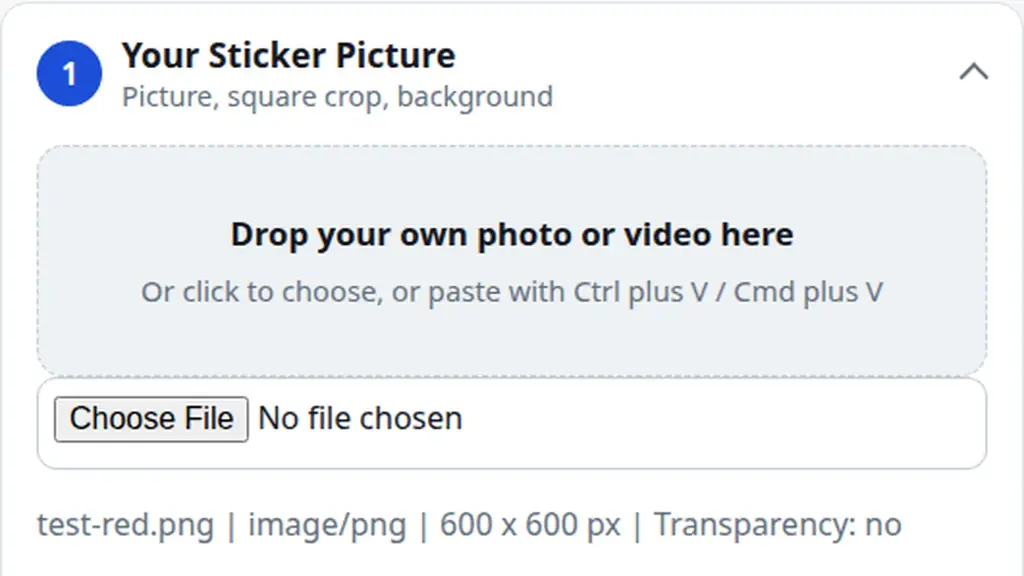
- In step 1, drop your picture onto the box that says Drop your picture here, or tap the box and choose a JPG, PNG, WebP or GIF file. Drag the preview until the subject sits in the middle of the square crop, then pick a background: Transparent, White, Black or Colour.
- In step 2, add your sound. Choose an audio file, press Start recording and speak or play a sound, type words and press Speak it, or open Free Sounds and press Use on a sound you like. The last sound you pick is the sound that gets used.
- If you use a typed voice, capture it before you export. Press Capture voice for export (tab audio) or Capture voice for export (microphone). A plain voice preview cannot be saved into a video by any browser, so the capture step turns the spoken words into real audio.
- In step 3, pick 5 seconds or 10 seconds, then move the start point slider or tap the waveform to place the window over the best part of the sound. Press Play this part and listen to exactly what will export, then move the window again if the sound starts late.
- Press Preview loop and watch the picture and sound play together three times. Check that the sound starts at the right place, that the loop point does not click, and that the picture still reads well at small size.
- Press Download MP4 for the version that works in the most places. Then press Send to WhatsApp to open the share sheet, or press Share this sticker to share the file with another app. You can also press Add this sticker to the pack to save it on this device.
If anything feels wrong, fix that step and preview again.
Pick A Picture That Reads At Small Size
Faces, pets and simple objects work best. One main subject beats a busy photo, because a sticker is small in a chat. Square pictures need no crop. A wide photo loses its edges in the 1:1 crop, so drag the crop until the subject sits in the middle.
Add Sound That Matches The Picture
Use your own music or audio file, a 10 second microphone recording, a captured typed voice, or a free sound made in the maker. A pop suits a surprise face. A laugh suits a joke. A short spoken greeting suits a birthday face. Keep the best moment near the start of the trim window.
Trim, Preview, Then Download
Choose 5 seconds for a quick joke or 10 seconds for a line or a tune. Play the preview loop twice. If the sound starts late, troubleshooting steps for a sound that starts late. Download MP4 for the widest use, or WebM where transparency matters.
Real Moments From Your Own Photos
The best stickers start with photos you already have. A real face, a real laugh and a real sound from the same moment beat any cartoon face, because your chats know the people and the joke behind it.
- Your own photo at a family meal, paired with the cheer or the laugh from that same meal. The photo proves the moment happened, and the sound brings it back.
- A friend laughing at a joke only your group understands, paired with the laugh itself. Crop close on the face so the laugh and the expression match.
- A pet caught mid bark or mid jump, paired with a recording of the sound it made. Your own pet, photographed by you, lands far better than a stock animal picture.
- A birthday photo around the cake, paired with the singing or cheering. Trim to the loudest second.
Tips For Better Stickers
Small choices make a sticker read instantly in a chat. Keep the picture simple, keep the sound short, and always preview before you share.
- Use one clear subject. A close up face or a single pet reads at sticker size, while a busy group photo turns into a blur.
- Put the best sound in the first second of the trim window. Chats are fast, and nobody waits for a slow intro.
- Match the sound to the face. A surprise face wants a pop, a win face wants a cheer, and a joke face wants the laugh that followed it.
- Make three versions and keep the funniest one. Change the sound or the trim window, preview each version, and send only the best.
Troubleshooting Quick Checks
Most problems come from one missed step. Check the sound, the preview and the file, in that order.
- Silent download after a typed voice: you skipped the capture step. Press Capture voice for export (tab audio) or Capture voice for export (microphone), then export again.
- Sound starts late: the trim window starts before the loud part. Move the window right on the waveform, press Play this part, and export only when the first second sounds right.
- Picture looks wrong: drag the preview to move the square crop, or try a different background. Small text in a photo is unreadable at sticker size, so choose a picture with one clear subject.
Frequently Asked Questions
Can I Use My Own Music?
Yes. Your own music or audio file is allowed in the maker, stays on your device, and can be saved as a My Sound for later use in the same browser.
How Long Should The Sound Be?
Five or ten seconds. The maker trims longer files to the window you choose.
Do I Need An Account To Make A Sticker?
No. The maker runs in your browser with no account and no install. Your picture and sound stay on your device, and you can make as many stickers as you like.
Can I Save A Sticker And Finish It Later?
The maker does not keep unfinished stickers between visits. Preview and download the sticker in the same visit, and use Add this sticker to the pack to keep finished stickers on this device.