Sticker With Sound On iPhone
On iPhone you can make a sticker with sound in your browser and send it as a short video with sound. There is no announcement of native sound sticker import on iOS, so the honest answer matters: the file plays with sound, but it is not imported as a WhatsApp sound sticker the way it is on Android Beta. Start in the sticker with sound maker in Safari or Chrome on your iPhone.

A sticker with sound is a square picture plus a short sound, saved as one looping video file. The picture stays still and the sound plays when the sticker is tapped. On an Apple phone the same file works, but the honest limit matters: there is no announcement of native sound sticker import on iOS, so the file sends as a short video with sound on iPhone.
Make The Sticker In Your Phone Browser
Open the maker in Safari or Chrome on your phone and work through the three steps in order.
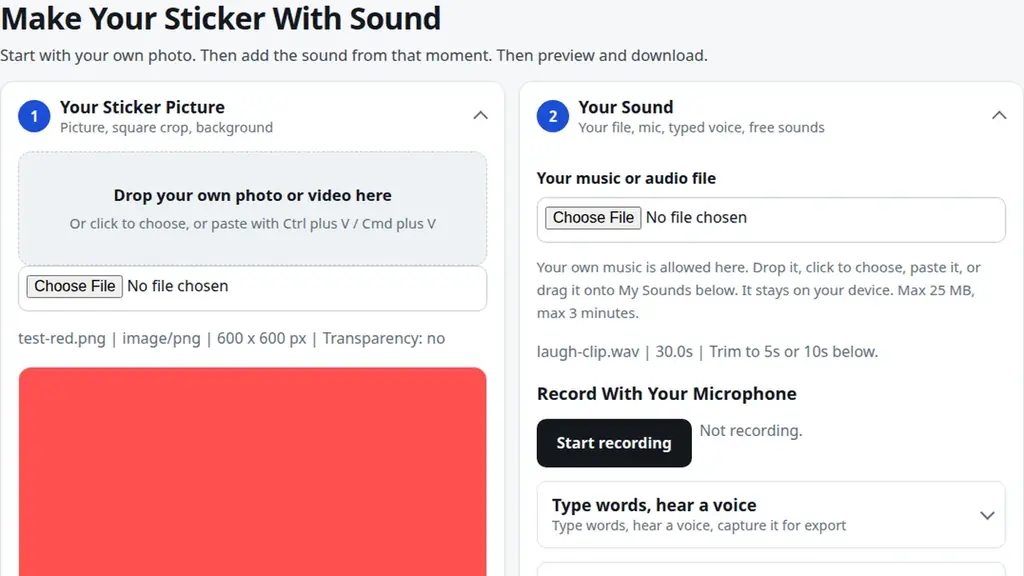
- Open the maker and add your picture. Go to step 1, tap Drop your picture here, and choose a photo from your photo library. Drag the preview to move the square crop until the face or subject sits in the middle, then pick a background: Transparent, White, Black, or Colour.
- Add a sound in step 2. Choose an audio file from your phone, press Start recording and record with the microphone, or open Free Sounds and tap a sound, then tap Use. Allow microphone access when the browser asks, or the recording will stay silent.
- Handle a typed voice the right way. Type your words under the typed voice section and press Speak it to hear the preview. A plain preview cannot be saved into a video by any browser, so press Capture voice for export (microphone) and record the spoken voice through the microphone before you export.
- Trim to the loudest part. In step 3, press 5 seconds or 10 seconds, then tap the waveform or move the start point slider until the window sits over the laugh, the cheer, or the line. Press Play this part to hear exactly what will export.
- Preview the loop. Press Preview loop and watch the picture and sound play together at least twice. If the sound starts late, move the trim window right. If the loop clicks at the join, move the window a little and preview again.
- Download the MP4. Press Download MP4 and save the file to your Photos app. Do not use Download WebP image for this job, because the WebP image has no sound. Download WebM is a web backup, not the chat version.
Real Moments That Work On A Phone
The best phone stickers start with a real moment you already lived, not with a picture you searched for. A real face, a real laugh, and a real sound beat any polished graphic, because the people in the chat were there, or wish they had been.
Your Own Photo At The Funny Second
Use a photo of yourself at the exact second something funny happened: the surprise face, the laugh you could not hold back, the look after a joke landed. Pair it with the sound from that same second, a laugh, a gasp, or one spoken word.
A Friend Laughing In The Group Chat
Take a photo of a friend laughing, with their permission, and add their real laugh as the sound. Keep the crop tight on the face, keep the sound to one loud laugh, and trim the window so the laugh starts at once. For the simplest recording path, see how to record your voice for a sticker and record the laugh in the same session.
A Pet Caught Mid Sound
A dog mid bark, a cat mid meow, a bird mid chirp: photograph your own pet and record the sound it actually made. The photo alone is cute, but the photo plus the real sound is the sticker people send again and again.
A Birthday Cheer Said Out Loud
At a birthday, photograph the candles and the faces around the cake, then keep the cheer everyone shouts at once. Trim the window onto the loudest second of the cheer and preview the loop twice.
Cartoon smileys are only a minor backup. Your own photo comes first, and a friend's funny moment comes second.
Tips For A Clean Phone Sticker
- Use a close up photo with one clear subject. A wide group photo turns into a blur at sticker size.
- Keep the sound short and loud. One laugh or one line beats a long clip with a slow start.
- Preview the loop twice before you download. The second watch catches a late start or a click at the join.
- Test with one friend first. If the sound plays for them, send the sticker everywhere.
Troubleshooting Sound On A Phone
- The recording will not start. Allow microphone access when the browser asks, then press Start recording again.
- The typed voice exports silent. The preview alone cannot be saved. Press Capture voice for export (microphone), record the spoken voice, confirm the status line, and export again.
- The file is silent in Photos. The sound was never embedded. Go back to step 2, load or capture the sound again, press Play this part, and only then press Download MP4.
- The sound starts late. The trim window sits on silence.
- Friends hear nothing in the chat. Check the mute switch and the volume, and tap the video itself. For the audio facts behind the flow, see the WhatsApp sticker with audio guide. If a file still arrives silent, check the silent sticker fixes before you remake it.
Frequently Asked Questions
Can An Apple Phone Import Sound Stickers Into WhatsApp?
No announcement has been made for iOS. The sound sticker import with the Sound icon is rolling out on Android Beta only. On an Apple phone, send the MP4 as a short video with sound, which plays the same way when tapped.
Does The Typed Voice Work On An Apple Phone?
The voice preview works, but putting it into the download needs a capture step. Use the microphone capture button to record the spoken voice, or record your own voice with the microphone instead. Tab audio capture is a desktop Chromium feature and is not available in phone browsers.
Why Is There No Sound When My Friend Taps The Video?
Check the phone volume and the mute switch, and tap the video itself rather than the small preview. If the file is silent in your own Photos app, the sound was never embedded, so remake it, press Preview loop, and check the sound before you send it.
Should I Use 5 Seconds Or 10 Seconds On A Phone?
Use 5 seconds for a laugh, a cheer, or a single line. Use 10 seconds only when the joke needs a short build up.