WhatsApp Sticker With Audio
A WhatsApp sticker with audio is a square video file in which the picture and the sound travel together. The maker embeds the trimmed audio into the MP4 or WebM during export, so the receiver hears the sound when they tap the sticker, where sound stickers are enabled. Or go straight to WhatsApp sticker with audio maker.

Audio in a sticker is different from audio in a voice note. A voice note plays on its own, while sticker audio only plays when the sticker is tapped, and only on accounts where WhatsApp has enabled sound stickers. The file itself is the same in both cases: one MP4 with one audio track.
Step By Step To Embed The Audio
Embedding means the audio becomes part of the video file, not a separate file. Follow the steps in order, and check the sound at the preview stage, because the preview shows exactly what the export will contain.
- Drop your picture onto the box that says Drop your picture here, drag the preview to set the square crop, and pick a background. A close up face or a clear pet photo works best.
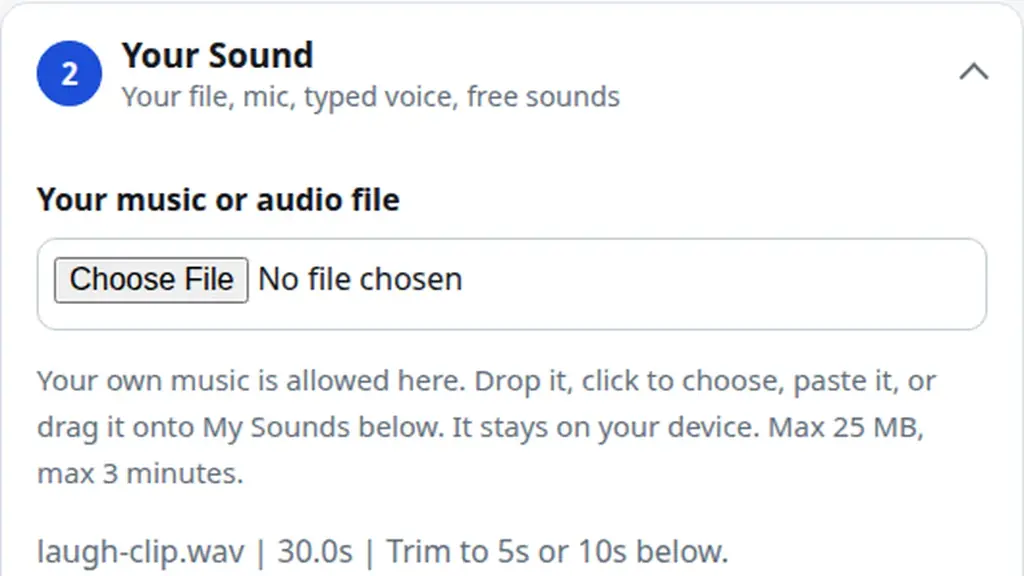
- Add your audio in step 2. Use the audio file button for a music or voice file, press Start recording for your own voice, or open Free Sounds and press Use on a sound. The last sound you pick wins.
- For a typed voice, type the words, press Speak it to hear them, then press Capture voice for export (tab audio) or Capture voice for export (microphone). The capture turns the spoken preview into real audio that can be embedded.
- In step 3, choose 5 seconds or 10 seconds and move the trim window onto the loudest, clearest part. Press Play this part, listen from the first second, and move the window until the sound lands at once.
- Press Preview loop and watch the loop three times with the sound on. If the preview is silent, the audio was not loaded or a typed voice was not captured, so go back to step 2 before you export.
- Press Download MP4, play the file in your gallery, and then press Send to WhatsApp or import it yourself through Create sticker, Add sound and Keep original audio.
Add a short text line with the sticker the first time you send it, so friends know to tap it for sound. After the first send, the speaker icon tells them.
Which Audio Works Best
Short, clear sounds win. A single laugh, a pop, a drum hit, or one spoken line reads instantly. Long music intros get cut by the 5 or 10 second trim, so move the trim window to the loudest part. Keep volume steady. A very quiet clip sounds silent in a noisy chat.
How The Audio Gets Embedded
The maker draws the picture on a canvas, captures the canvas as video, and mixes the trimmed audio buffer into the same recording. The result is one file with a video track and an audio track. Captured typed voices are real audio buffers, so they embed the same way. Plain speech preview alone has no audio buffer, which is why the maker offers tab capture and microphone capture first.
Send It Well
Use the Send to WhatsApp button in the maker. It exports the MP4, opens the share sheet where supported, and shows the import steps. Add a short text line with the sticker the first time, so friends know to tap it for sound.
Real Moments With Audio That Matters
Audio matters most when it belongs to the photo. A laugh, a cheer or a line said by the people in the picture turns a silent image into a moment your friends can hear again.
- Your own photo of a friend laughing, with that same laugh as the audio. The match between the face and the sound is what makes people send it again.
- A birthday photo with the singing or the cheer from the room. One loud second of the cheer beats a long quiet recording every time.
- A pet photo with the sound your pet made in that moment. Record the sound yourself, because a generic animal sound never matches your own pet.
- A photo of friends on a trip, with the shout or the laugh from that stop. The audio carries the place, the weather and the mood in a way the photo alone cannot.
Tips For Audio That Reads Instantly
Sticker audio is heard in noisy chats, on small phone speakers, and often only once. Make it loud, clear and short, and put the best part first.
- Choose short, clear sounds. A single laugh, a pop or one spoken line reads instantly, while a long quiet intro gets cut by the trim.
- Keep the volume steady. A very quiet clip sounds silent in a noisy chat, so pick a louder part of the file or a louder recording.
- Start the trim window a fraction before the loud moment, so the first sound is not cut in half, and end it just after the moment lands.
- Test the sticker on one friend first. If they hear the sound when they tap it, send it everywhere. If not, check the capture step and the export again.
Troubleshooting Quick Checks
A silent sticker usually means the audio never reached the export, or the receiving app does not play sound stickers yet. Check the maker first, then the app.
- Preview has sound but the download does not: the export may have used a typed voice preview with no capture. Capture the voice, then export again.
- Preview is silent too: no sound was loaded in step 2. Load a file, a recording or a free sound, and preview again before you download.
- File has sound in the gallery but plays silently as a sticker: the receiving account may not have sound stickers enabled yet. The MP4 itself is correct, and it still plays as a short video.
Frequently Asked Questions
Can I Add A Song To A Sticker?
Yes, with your own audio file. Keep the trim on the best 5 or 10 seconds, and respect the rights of whoever made the song.
Why Is My Sticker Silent?
Either the export used plain speech preview with no captured audio, or the receiving app does not support sound stickers yet. Capture the voice first, then export again.
Does Sticker Audio Play On Its Own In A Chat?
No. Sticker audio plays when the sticker is tapped, and the sticker stays muted until then. That is different from a voice note, which plays on its own.
Can I Mix Music And My Voice In One Sticker?
The maker uses one sound per sticker, and the last sound you pick wins. Record your voice over music with your phone first, then add that recording as one audio file.