Stickers With Sound On WhatsApp, Explained
Stickers with sound on WhatsApp are stickers that play a short audio clip when tapped. WhatsApp is rolling the feature out on Android Beta version 2.26.47.1, phased per account. It is not a format you can force on with a setting, and it is not announced for iPhone. Or go straight to Stickers with sound maker.

The rollout is controlled by WhatsApp, not by this maker. The maker can only build a correct file, a square MP4 with embedded audio, and show you the import flow. Whether the Sound icon appears depends on your WhatsApp version and whether your account has been enabled.
Step By Step To Check And Send
This guide is about the WhatsApp side as much as the maker side. Build a correct file first, then check whether your account has the Sound icon, and use the video fallback if it does not.
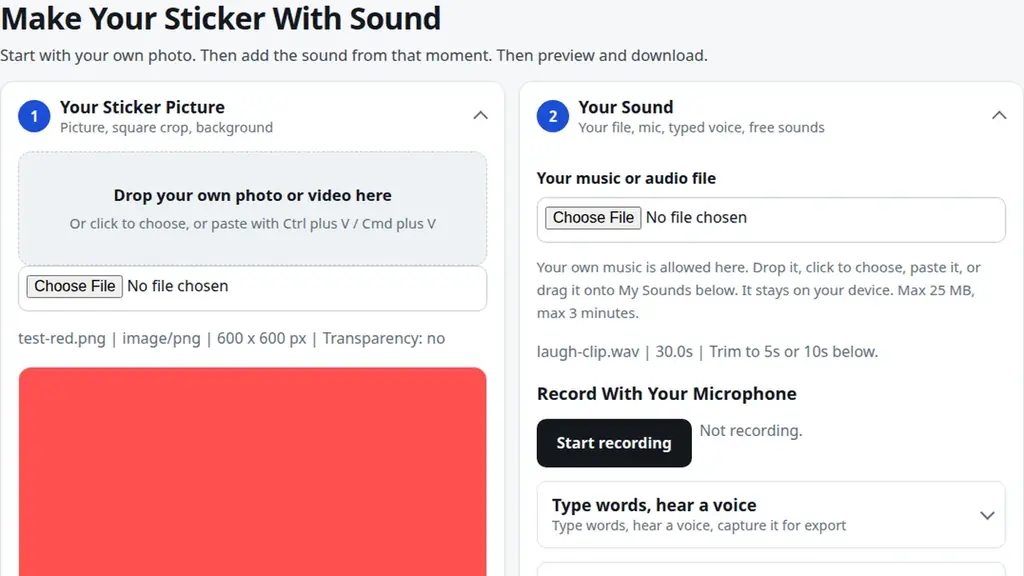
- In the maker, drop your picture onto the box that says Drop your picture here, set the square crop, and pick a background. Use a photo from your own phone, with one clear subject.
- Add a sound in step 2: an audio file, a recording made with Start recording, a captured typed voice, or a free sound. Press Speak it and capture a typed voice before export, or the download will be silent.
- Trim the sound in step 3. Pick 5 seconds or 10 seconds, move the window to the loudest part, press Play this part, then press Preview loop and watch the loop with the sound on.
- Press Download MP4 and play the file in your gallery. If the gallery playback has sound, the file is correct, whatever WhatsApp shows next.
- Open WhatsApp Beta on Android, open a chat, tap the sticker icon, tap Create sticker, and pick the video. If a Sound icon appears, tap it, tap Add sound, and choose Keep original audio.
- Save the sticker and send it. If no Sound icon appears, send the same MP4 as a short video instead, keep the file in your gallery, and try the Create sticker step again after a later Beta update.
Do not reinstall WhatsApp or change phone settings to chase the icon. The rollout is per account, and no setting on the phone forces it on.
What Is Rolling Out
In the Android Beta, creating a sticker from a video can show a Sound icon. Tapping it lets you add a sound, keep the original audio from the video, or record a voice. The sticker then shows a speaker icon in chat. Tapping the sticker plays the sound, and silent mode on the phone is respected.
What Happens On Other Platforms
On iPhone and iOS, WhatsApp PC and WhatsApp Web, there is no sound sticker import. A video made for sound stickers still sends and plays as a normal short video with sound, which is why the maker exports a standard MP4. Nothing about the file is wasted if import is not offered yet.
How To Tell If Your Account Has It
Open WhatsApp Beta, open a chat, tap the sticker icon, tap Create sticker, and pick a video. If a Sound icon appears, the rollout has reached your account. If it does not, no file or app setting changes that. Try again after a later Beta update.
Real Moments For Group Chats
Group chats are where sound stickers earn their place. A moment the whole group shared, with the sound from that moment, becomes a reply that needs no words at all.
- A friend laughing at a group joke, with the laugh itself as the sound. The group knows the joke, the face and the laugh, so the sticker lands at once.
- A pet photo from a group outing, with the sound your pet made. Your friends were there, and the sound takes them straight back to that day.
- A birthday photo from the group celebration, with the cheer from the room. Send it to the group on the birthday, and again on the anniversary of the photo.
- A travel photo of the group at a viewpoint, with the shout or the laugh from that stop. The sound carries the trip in a way a silent photo cannot.
Tips For The Rollout Period
While the rollout is phased, treat every sticker as two things at once: a sound sticker where the feature is enabled, and a short video with sound everywhere else. Both uses are worth making well.
- Make the MP4 first and check it in the gallery. A correct file works as a video even before your account gets the Sound icon.
- Tell one friend to tap the sticker. If they hear the sound, the feature works for them, and you can send the sticker more widely.
- Keep the sound short and loud. A one second laugh or cheer reads in a busy group chat, while a quiet ten second clip gets missed.
- Do not promise friends that a sticker will play with sound on every phone. Say that it plays where sound stickers are enabled, and that it plays as a video elsewhere.
Troubleshooting Quick Checks
Most WhatsApp problems in this rollout are account problems, not file problems. Check the file once, then check the account, and stop there.
- No Sound icon: confirm WhatsApp Beta on Android, version 2.26.47.1 or later, and that you picked a video in Create sticker. If the icon is still missing, the account has not been enabled yet.
- Sticker sends as a video: you shared the file straight into the chat instead of importing it through Create sticker. Import it again through the sticker flow.
- Sound plays for you but not for a friend: the friend's account may not have the feature yet. The file is the same, and the friend can still play it as a video.
Frequently Asked Questions
Is There A Public API For Sound Stickers?
No. WhatsApp does not offer a public API for stickers with audio, which is why the official flow is the Create sticker flow inside WhatsApp itself.
Do Sound Stickers Work In Groups?
Where the feature is enabled, a sound sticker sent in a group behaves like a sticker in a private chat: tap to play, speaker icon shown.
Can I Force The Sound Icon To Appear?
No. The rollout is phased per account on Android Beta, and no setting, reinstall or file change forces it on. Try again after a later Beta update.
Do Sound Stickers Work On WhatsApp Web?
No. WhatsApp Web and WhatsApp PC do not offer sound sticker import. The same MP4 sends there as a normal short video with sound.